

Panalobet APK Installation Guide for Beginners in PH
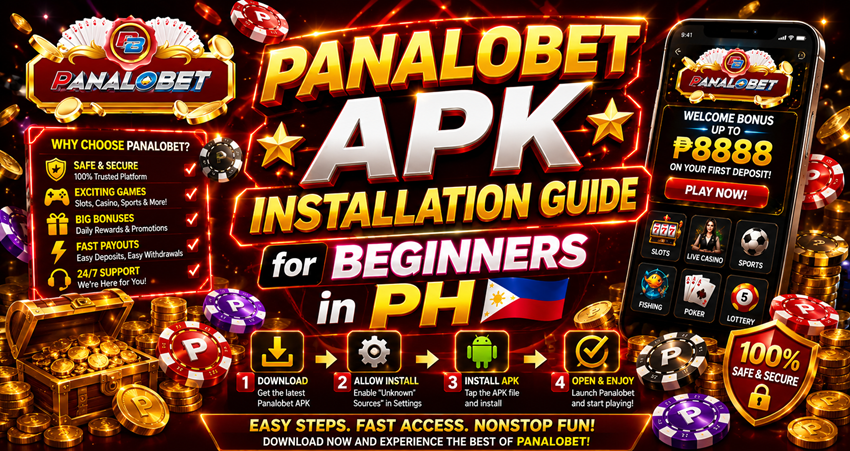
Playing slots or trying to place a bet using Google Chrome on a phone can be a total headache. Anyone living here in the Philippines already knows the struggle. One second there is a decent signal, and the next minute the data drops to H+, the whole page decides to refresh itself, and boom—the momentum is gone. Or even worse, the screen gets accidentally swiped the wrong way, closing the tab completely right in the middle of a good run.
It gets annoying fast. That’s exactly why so many local players have totally ditched the browser and moved to the actual Panalobet app.
But there is a catch. Searching for it on the Google Play Store brings up absolutely nothing. Instead, players are told to go to a website and download an “APK file.” For anyone who isn’t a tech person, seeing an Android phone suddenly throw up red flags about “unknown sources” is enough to make them back out. It feels super sketchy, right?
Honestly, it’s not. The only reason it isn’t on the Play Store is because Google has really strict policies about betting apps in this region. It’s just a rule thing, not a virus thing. Setting it up is actually crazy simple. Just follow these steps to get it running without messing up the phone.
Why bother with the app anyway?
You might be asking if it’s really worth the effort when logging in on the website works fine. It absolutely is. This is especially true for anyone surviving on prepaid data promos like Go50 or something similar.
When using a mobile browser, the phone has to download every single image, banner, and background script on that site every time it opens. It chews through data allowances. The app already has all that heavy stuff built right into it. It only uses data to load the actual game results. That means it runs way faster and doesn’t lag as much when the signal randomly decides to act up during a commute. Plus, there is no need to type a password every single day. Just tap the icon, and you’re in.
Fixing the Android settings first
Before looking for the download link, one quick setting on the phone needs to be tweaked. Android devices are programmed to block anything that doesn’t come directly from their official store. The phone basically just needs to be told to chill out for a second.
Grab the phone and go to the main Settings. Scroll down until Security pops up. (If it is a Samsung, Xiaomi, or Oppo device, it might be hiding under Privacy or Security and Privacy—just poke around to find it).
Look for an option that says Install Unknown Apps or Unknown Sources. It will show a list of apps. Find the browser being used—usually Chrome—and just flip the switch to allow it. Boom. The browser just got the green light to download the file.
How to actually get the app
Alright, here is the actual download part.
First, open Chrome and go straight to the official Panalobet website. It is extremely important to only download it from the real site. Ignore those random Facebook groups or sketchy YouTube comments giving out “special” download links. Those are usually scams. Just stick to the legit site so the account doesn’t get compromised.
Once on the homepage, look for the mobile app section. Most of the time there’s a huge banner at the top saying “Download App.” Or sometimes it’s a tiny little Android robot floating on the side of the screen. If it is still hidden, just scroll all the way to the very bottom of the page.
Tap the download button. Almost instantly, the phone is going to panic and pop up a warning saying something like “This file might be harmful.” Don’t stress. As mentioned earlier, that’s just Android’s default reaction. Tap Download anyway.
The file itself is pretty small. Unless the Wi-Fi is acting up, it should be done in a few seconds. When it finishes, a little notification will pop up saying the download is complete. Just hit the Open button right next to it. (If it got accidentally swiped away from rushing, don’t worry. Go to the phone’s File Manager, open the Downloads folder, and the file will be sitting right there. Tap it).
The screen will ask if you want to install it. Hit Install. A loading bar will pop up for a bit, and then it’ll say “App installed.” Hit Open and the setup is complete.
That’s the whole process! Just log in with the usual details or make a new account if starting fresh.
What if it doesn’t work?
Sometimes phones just refuse to cooperate. If it doesn’t install, it’s usually one of two really common reasons.
If the error says “App not installed,” the phone storage is probably full. The app needs a little bit of breathing room to unpack itself. Go delete some of those old TikTok drafts or uninstall that game that hasn’t been touched in six months, and try tapping the file again.
If it gives a “parsing error,” the internet probably dropped for a split second during the download and corrupted the file. No big deal. Just delete it, try to find a stronger Wi-Fi signal, and download it again from the site.
Having the casino right on the home screen is super convenient, but it also makes it a little too easy to play whenever boredom strikes. Just remember to set a budget before cashing in, and actually stick to it. Enjoy the games and play responsibly!
Table of Contents
Share this post on.


Hi, I’m Panalobet Admin, a Fulltime Online Gambling Copywriter based in the Philippines. With over four years in the industry, I bring a wealth of experience to the table. At 36, I continue to thrive in this vibrant sector.